OverKill Simulations — Control the Experience

Every piece of sim hardware you own, running through one app
HangarControl sits between your hardware and your simulator. It reads joysticks, yokes, throttles, button boxes, encoders, MIDI controllers, Stream Decks and WinWing panels directly, and turns them into real sim commands: SimConnect events and L:, H: and B: variables in MSFS, cockpit commands in DCS, commands and DataRefs in X-Plane. Profiles are per aircraft and switch on their own when you load a different plane.
Around that core it carries the rest of the rig: a touch panel designer that turns any tablet into avionics, a Stream Deck plugin, local voice commands, a mod and livery manager, launch sequences for your whole setup, and backups that move to a new PC in one zip.
- Native connections. MSFS 2020 and 2024, DCS World and X-Plane 12 each get a real bridge, not keyboard emulation. Any other game works through keyboard and vJoy output.
- 260+ hardware definitions. Thrustmaster, Virpil, VKB, Honeycomb, Logitech and Saitek, CH, MOZA, Turtle Beach, WinWing, VirtualFly, Yawman and more are recognised by name, with the right control labels.
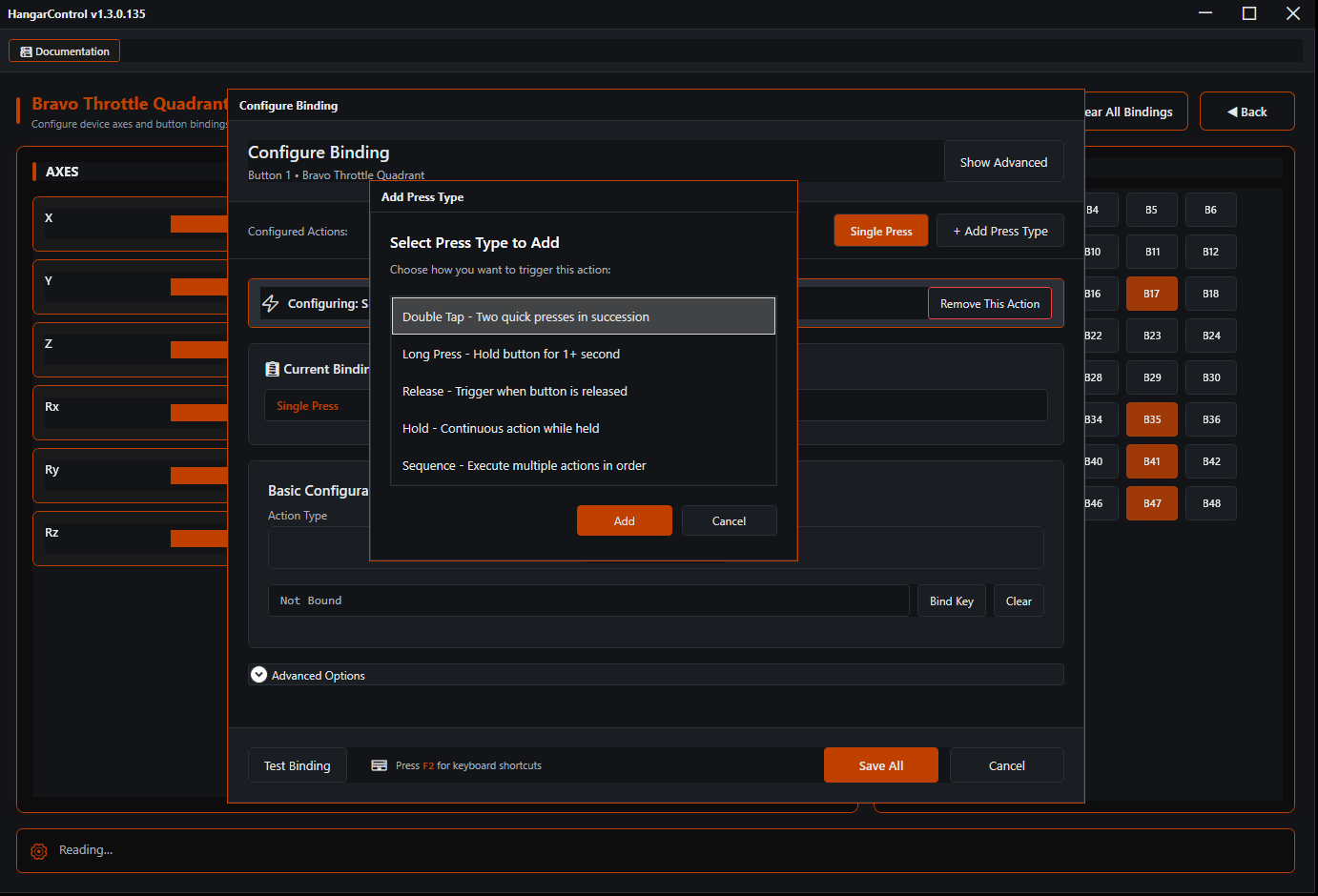
- Five press types on every button. Single, double tap, long, release and hold, each with its own action, sequence or step cycle, and conditions on top.
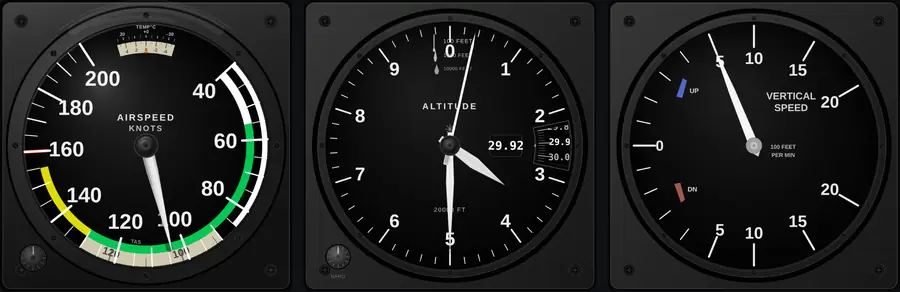
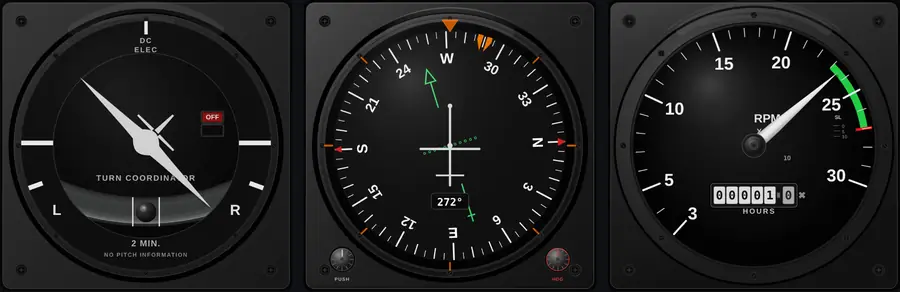
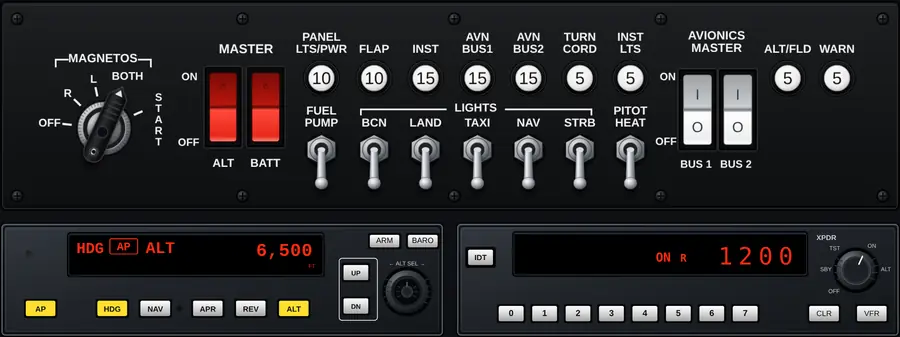
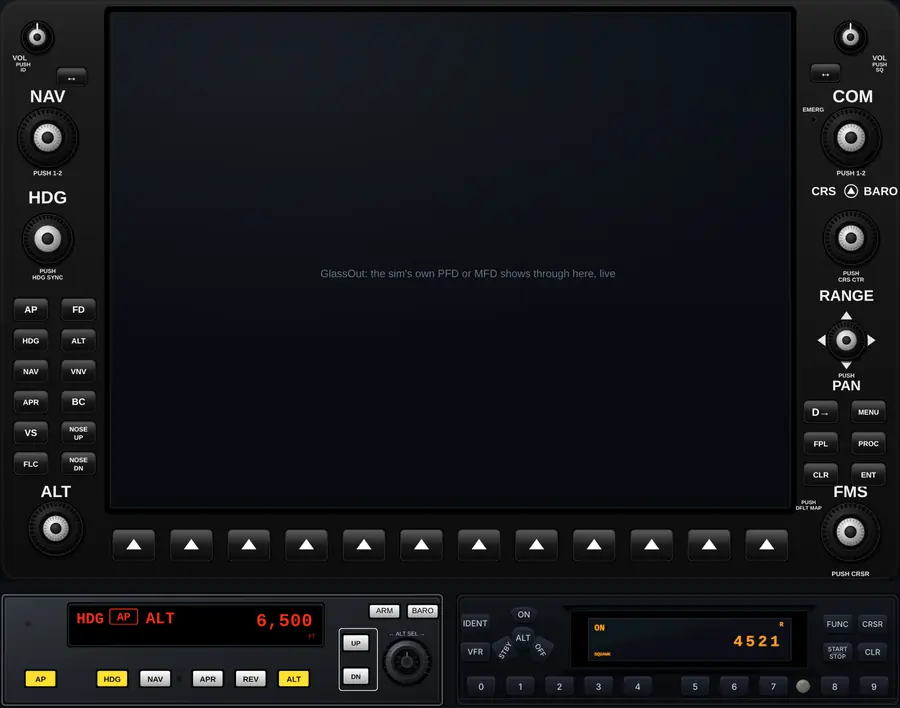
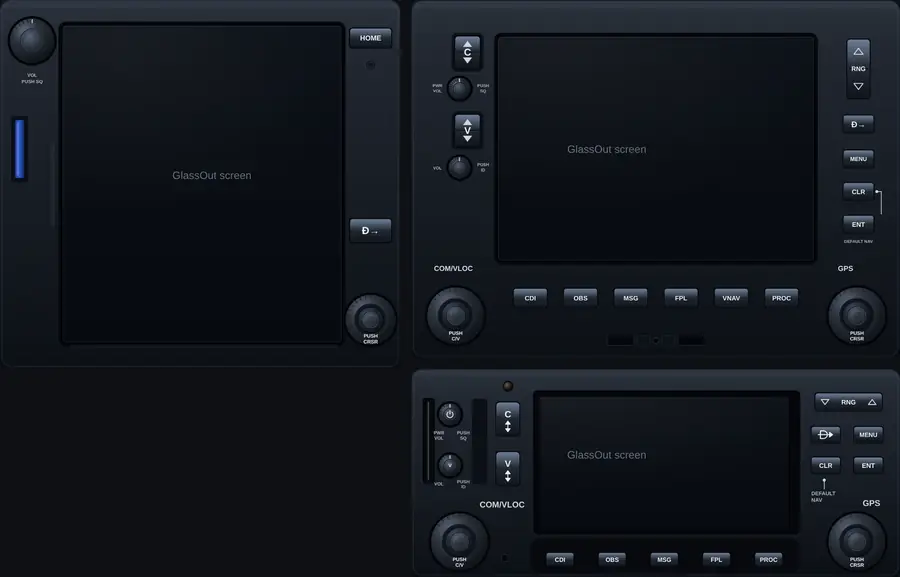
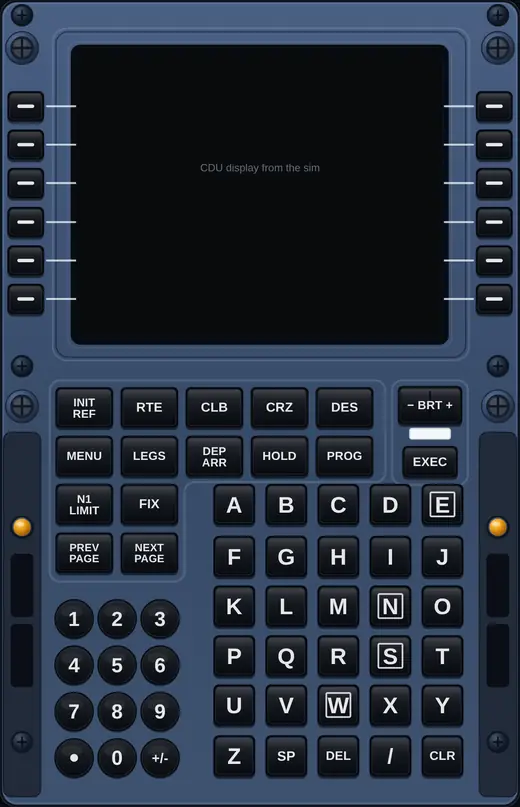
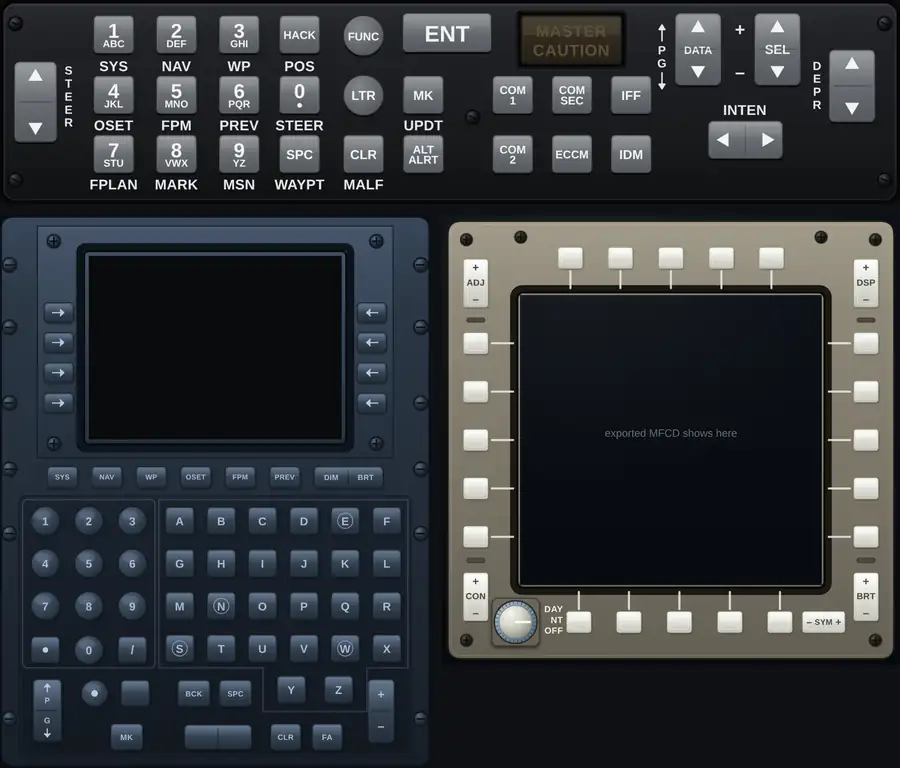
- 29 built in gauges for touch panels, from a C172 six pack to the G1000, GTN 750, 737 CDU and A-10C UFC.
- 52 DCS aircraft libraries with every clickable mapped, so a Stream Deck key can press the real cockpit switch.
- One purchase. $39.99, two computers, free updates for life, and a 5 day trial with everything turned on.
Simulators
Each simulator gets its own hangar, and only the services that sim needs run while it’s active.
Standard SimConnect events, plus a HangarControl module that installs itself into your Community folder and keeps itself up to date. That module is what gives you full read and write access to L: variables, H: events, the 2024 B: input events and raw RPN calculator code, so add on aircraft switches move the way the cockpit expects.
- Community folder found automatically, module repaired if an update was interrupted
- PMDG SDK support with its own event picker and broadcast setup
- Reverse thrust, trim sync, “use sim variable as data value” for knobs that follow the aircraft
HangarControl deploys its export script into your Saved Games folder and talks to DCS over a local bridge. Commands reach the actual cockpit clickables, selectors step through their real positions, and axes are sent every frame.
- 52 aircraft libraries with every clickable mapped (full list below)
- Universal axes for pitch, roll, rudder, thrust, collective and brakes
- Deploy, update and remove the script from inside HangarControl
A bundled plugin is deployed into X-Plane’s plugin folder for you. From there you get X-Plane commands, DataRef reads and writes, and automatic aircraft detection for profile switching, all through pickers rather than typing paths by hand.
- Command and DataRef pickers
- Optional override of X-Plane’s own flight control handling
American and Euro Truck Simulator have their own hangar type, and anything else that accepts keyboard input or a joystick works through keyboard chords and vJoy virtual joystick output. Same bindings, same press types, same profiles.
Control Bindings & Profiles
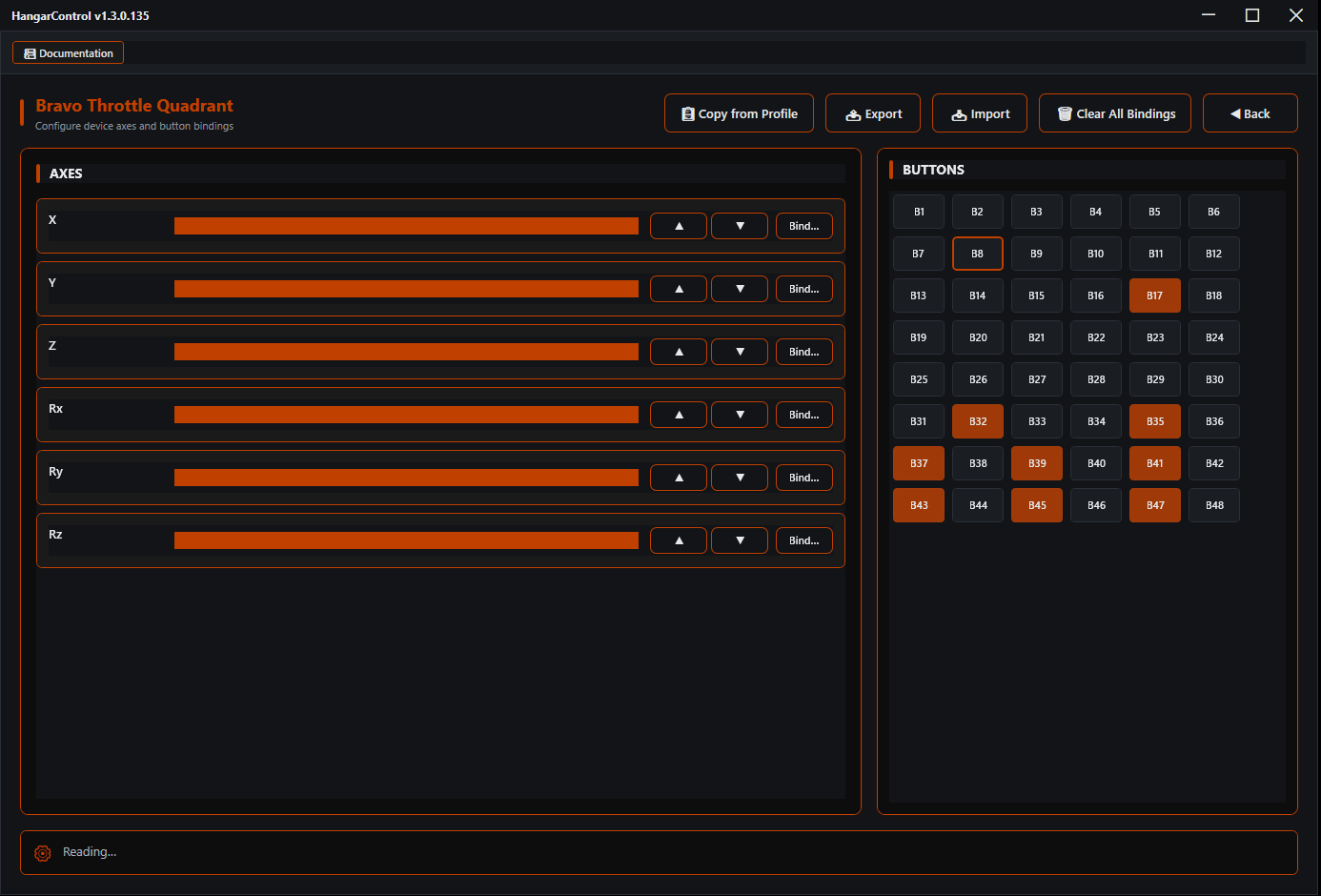
Plug in a device and HangarControl names it, labels its controls, and shows you a tile for every button and axis. Bind what you want, and the profile follows your aircraft.
Every button carries up to five press types: single press, double tap, long press, release and hold (with repeat). Each one runs a single action, a sequence with pauses, a step cycle, or an asymmetric toggle, so one physical switch can do a cold start.
- Keyboard chords and key holds
- SimConnect events (K:, L:, A:, B:, H:) and RPN code
- SimVar set, toggle, increment (L:, A:, B:, J: vars)
- X-Plane commands and DataRefs, DCS commands
- vJoy button and axis, progressive axis
- Flags, HC variables, run an executable, send a UDP or TCP message, change a touch panel page
Gate any action on a flag, an L: or A: variable, whether another button is held, or an HC variable, combined with AND, OR and IF. Conditional operations run different actions on true and false, so the same key can mean “gear up” or “gear down” depending on where the gear is.
Hangars group profiles per simulator. Bind an aircraft to a profile and it switches the moment you load that plane. Profiles can inherit from a parent up to ten levels deep, so your base layout lives once and each aircraft only adds what’s different.
Axis Tune gives every axis deadzone, saturation, curvature, neutral point, virtual detents, invert and a reverser button. Axis segments fire actions at thresholds or ranges. Any pair of buttons becomes an encoder with acceleration up to 10x and a speed variable up to 50x.
Give one device several binding sets and switch between them on a condition, a shift button or a flag. Layers can cover buttons only or buttons and axes, and can cancel themselves after a timeout.
Remap physical keys, with the original keystroke blocked, only while a sim is in front. Hold a key while a button is held. Useful for the sims and add ons that only listen to the keyboard.
Export and import profiles, whole hangars, device layouts and layers. Copy bindings between devices and profiles. Replace Device moves everything to a new stick, and Reconnect Missing Devices fixes Windows changing a controller’s ID.
One click activates a bindings profile, a Mods Hangar profile, your App Hangar launch sequence and the sim bridge together. Open HangarControl, pick the aircraft, fly.
Stream Deck
A full plugin for every current Stream Deck, installed from inside HangarControl. Keys and dials run through the same binding engine as your hardware, with live sim values on the keys.
- Stream Deck Mini (6 keys)
- Stream Deck MK.2 (15 keys)
- Stream Deck XL (32 keys)
- Stream Deck Neo (8 keys)
- Stream Deck + (8 keys, 4 dials, touch strip)
- Stream Deck Pedal (3 pedals)
Needs the Stream Deck software 6.5 or newer on Windows 10 or 11.
- HC Binding (the full press model on a key or dial)
- SimConnect Event, with 85 quick presets
- SimVar Write
- SimVar Display (live values on the LCD strip)
- Encoder Control (dials)
- X-Plane Command and DataRef
- DCS Command
- Keyboard Shortcut
- Flag Control and Conditional Action
- HC Window Toggle, HC Service Toggle, Page Sound
Up to three stacked live values per key and four text slots per LCD strip, with multi band states so a key can show more than on and off. A bundled icon pack works offline, and your own icons drop in.
Turn adjusts a SimVar, runs actions, or sends DCS commands, with conditional branches that each get their own LCD text. Press, double tap and touch strip taps are bindable, including passing a vJoy button straight through while the dial is held.
Set a key up in the HangarControl binding window with sequences, conditions and step cycles, and the Stream Deck app just shows the result. No juggling two editors.
Touch Panels
Any phone, tablet or spare monitor on your network becomes a live control surface. HangarControl serves the panel from a local web server, so there’s nothing to install on the device, and it can also run as a borderless window on the sim PC itself.
Drag and drop widgets onto pages and layers: buttons, displays, gauges, labels, images, sliders, web views and transparent zones. Buttons light up from the sim’s real state, group as radio sets, and change page or panel. Export a panel and share it.
Put the sim’s real G1000 or GTN screen behind a drawn bezel on the tablet. The bezel buttons press the real avionics, and the screen in the middle is the sim’s own display, live.
Hand a physical encoder, a Knobster, a MIDI knob or a joystick hat to whatever is under your finger on the screen. Tap a knob on the panel, turn the real one. Knob acceleration included.
- Airspeed Indicator
- Altimeter
- Vertical Speed
- Heading
- RPM
- Fuel Quantity
- Manifold Pressure
- EGT
- C172 Tachometer
- C172 Airspeed Indicator
- C172 Altimeter
- C172 HSI / Heading Indicator
- C172 Vertical Speed Indicator
- C172 Turn Coordinator
- C172 Electrical Panel
- G1000 PFD / MFD
- GNS 530 GPS / NAV / COM
- GNS 430 GPS / NAV / COM
- GTN 750 Touchscreen
- GA Autopilot Panel
- GA Transponder (standard and advanced)
- Boeing 737 CDU / FMC
- A-10C CDU
- A-10C UFC
- MFCD / MFD for DCS (A-10C II, F/A-18C, F-16C, AV-8B)
- CRAFT clearance templates (3)
Variants cover the PMS50 and TDS GTN 750s, WT and legacy GNS 530, captain and first officer CDU, A-10C and A-10C II. Custom gauges are HTML with a manifest, dropped into a folder.
Every button gets the same action types as a hardware button, with guard conditions, and can watch an L:Var, SimVar, flag, HC variable or DCS argument to change its look.
Pick which network interface serves the panel, add the firewall rule from inside the app, and install the panel to a phone’s home screen as a web app.
Run several panels per profile, switch between them from a button, and send “page” changes from any hardware binding or voice command.
A few of the built in gauges, rendered from the same gauge code that ships in HangarControl. Where a screen says GlassOut, the sim’s own display is shown there in use.
WinWing & WingFlex
Dedicated drivers for the panels with displays and LEDs, so the digits, lights and brightness follow the aircraft. Everything else from WinWing (sticks, throttles, MFDs, UFC) works as a normal input device with its controls named.
- FCU, including the FCU-32 and the WINCTRL FCU+EFIS combos
- EFIS-L and EFIS-R, with a separate barometer brightness
- PAP-3 MCP, reading PMDG data directly for the 737
- Orion 2 throttle, all 110 buttons
Presets: MSFS default (GA and airliners), Fenix A320, PMDG 737 NG3. Four brightness channels, first officer overrides.
- A320 FCU Cube, presets for Fenix, FlyByWire A32NX and iniBuilds A320neo
- A320 RMP / Overhead Cube, 12 modes, 17 LEDs, transponder digit paging
- DAP 500, drawn panel with arrow LEDs, backlight and MSFS autopilot defaults
Knob pushes open the full binding window, so a push gets short, long and double tap like any button.
Hardware
If Windows sees it, HangarControl can bind it. These get something extra.
Bravo LED bindings for autopilot, gear and annunciators, an alternate LED layout, a test all lights button and copy from parent.
Radio panel with 7 modes, 8.33 kHz spacing and avionics off blanking. Multi panel with 5 modes and 8 LED buttons. Switch panel with conditions and sequences on every switch.
Any USB MIDI device, with MIDI Learn to bind notes, CCs and pitch. The Behringer X-Touch Mini has a full definition with layers and LED feedback in both standard and Mackie modes.
Knobster, RotAIR Type 1 and Type 2, s16n Funky Coder, Funky Coder Plus and FreeJoy, plus any serial encoder over a COM port with a learn dialog.
PMDG SDK event picker with 737 and 777 catalogs, and an INI tool that turns on the data broadcast and CDU options for you.
Any binding can press a virtual joystick button or drive a virtual axis, for games and add ons that only read joysticks. Requires the free vJoy driver.
Hardware detection debug with VID and PID, a USB selective suspend optimizer so devices don’t go to sleep mid flight, and one click Windows Defender exclusions.
Voice Commands
Speech recognition that runs on your own PC with Whisper. No account, no cloud, no monthly fee. Any phrase can trigger anything a button can.
Push to talk on a button or key, press once to toggle, always listening, or a wake word (“hangar” by default). Up to 8 commands in one breath. Phrases forgive fillers and near misses but never confuse opposites.
“Set heading two seven zero”, “altitude flight level three five zero”, “squawk seven thousand”, “flaps ten”, and relative commands like “increase altitude ten thousand” or “turn left twenty”. Custom targets take an L:, B:, RPN or DataRef with scale and offset.
English plus 42 other languages, with built in packs for German, French, Spanish, Italian, Portuguese, Dutch and Polish. Four model sizes from 75 MB to 547 MB, so it runs on a modest PC or sounds razor sharp on a big one.
Three starter packs (values, autopilot, aircraft systems) for MSFS. A Voice button on any binding. Teach from the last 30 things it heard. Test a phrase by typing it. Phrases are per profile, so the Cessna and the 737 don’t share a vocabulary.
DCS World tools
Each aircraft library maps every clickable in the cockpit: device, command, press and release values. Pickers set pulses, build step cycles for toggles and step selectors through their real positions, so you never look up a Lua argument.
- A-10C
- A-10C II Thunderbolt
- A-29B
- A-4E-C
- AH-6J
- AH-64D
- AJS37 Viggen
- AV-8B N/A
- Alphajet
- Bf 109 K-4
- C-101
- C-130J Super Hercules
- CH-47F
- Christen Eagle II
- Edge 540
- F-14B Tomcat (and F-14B(U))
- F-15E
- F-16C
- F-22A
- F-4E Phantom II
- F-5E-3
- F-86F Sabre
- F4U-1D Corsair
- F/A-18C Hornet
- Fw 190 A-8
- Fw 190 D-9
- I-16
- JF-17
- Ka-50
- Ka-50 Black Shark 3
- L-39
- M-2000C
- MB-339A
- MH-60R
- Mi-24P
- Mi-8MT
- MiG-15bis
- MiG-19P
- MiG-21bis
- MiG-29A Fulcrum
- Mirage F1
- Mosquito
- OH-58D Kiowa
- P-47D
- P-51D
- SA342 Gazelle
- Spitfire LF Mk IX
- T-45 Goshawk (VNAO)
- UH-1H
- Yak-52
Plus custom commands per aircraft, relative knobs, hold while held, and kneeboard, comm menu, view and snap view commands in every module.
Multi monitor DCS without editing Lua. Lay out your monitors, place exported cockpit displays (MFCDs, DDIs, the Apache MPDs) where you want them, patch the files automatically, and keep profiles with a Display Guard so a DCS update doesn’t undo it. Triple screen, bezel correction, VR mode, DDC/CI brightness, and Start with Windows.
Viewports for F/A-18C, F-16C, A-10C II, AH-64D, AV-8B, Ka-50 III, F-15E, F-14, F-4E, JF-17, M-2000C, plus custom modules.
The touch panel MFCD gauge draws the A-10C II, F/A-18C, F-16C and AV-8B display bezels with working buttons. Combine it with the Export Manager and the real display shows through the cutout.
Mods Hangar
A mod and livery manager for MSFS, DCS, X-Plane and the truck sims. Add ons live in a repository and get deployed into the sim by link or copy, so switching a whole setup is one click and nothing silently overwrites anything.
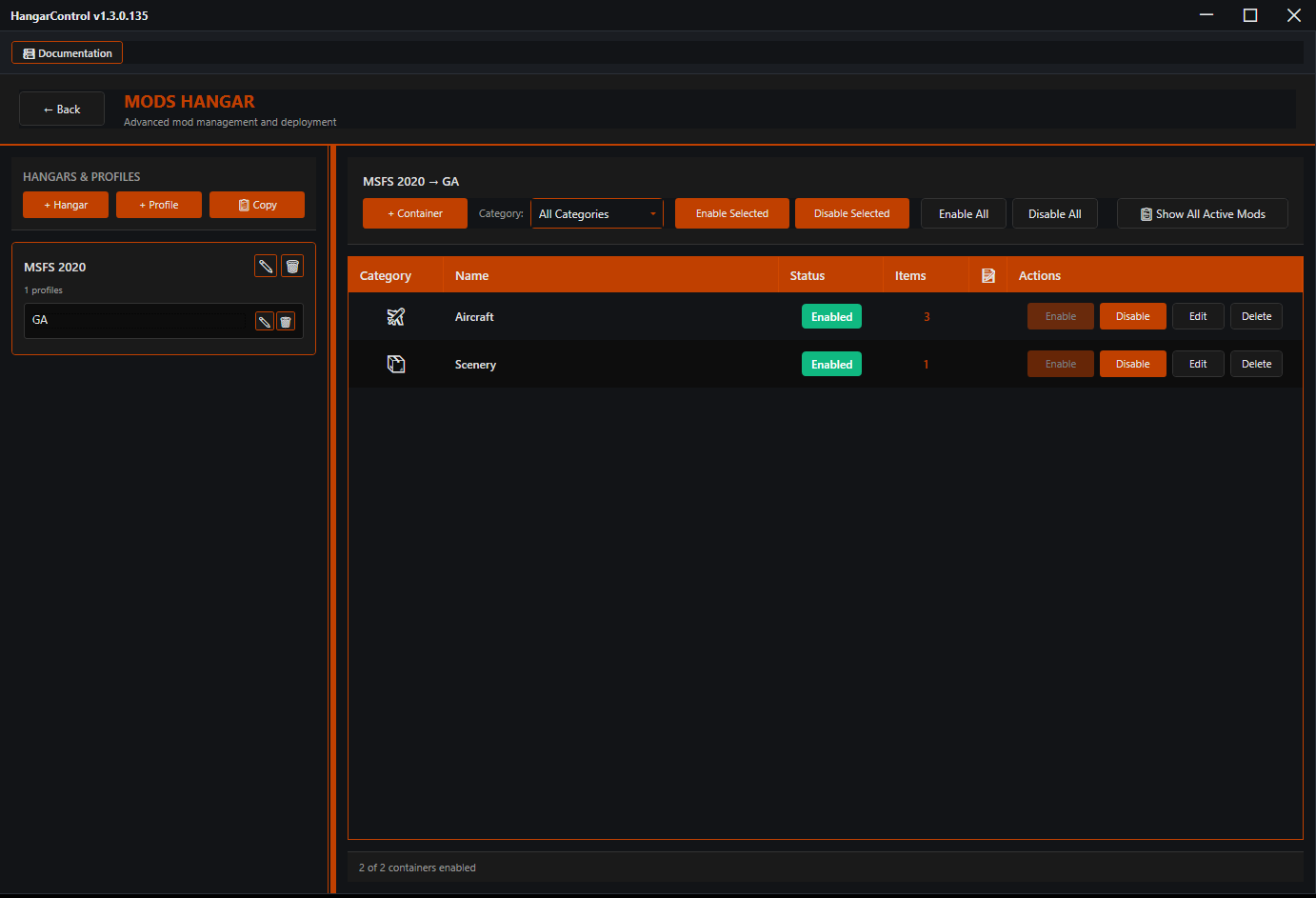
Group add ons into containers with categories, tags, notes and dependencies. Turn individual add ons on or off inside a container. Scan a folder and preview what will be deployed before anything moves.
When two containers carry the same file you choose overwrite, skip or cancel, and HangarControl remembers who owns what. Disable the top one and the file underneath comes back. Disable both and the game’s own file is restored.
Activate a profile and the sim folder is rebuilt clean to match it. Batch enable, disable and delete, duplicate profiles, auto detect the target folder, and leave no empty folders behind.
App Hangar & rig tools
The stuff around the sim: launching it all, keeping the PC out of the way, and never losing a configuration.
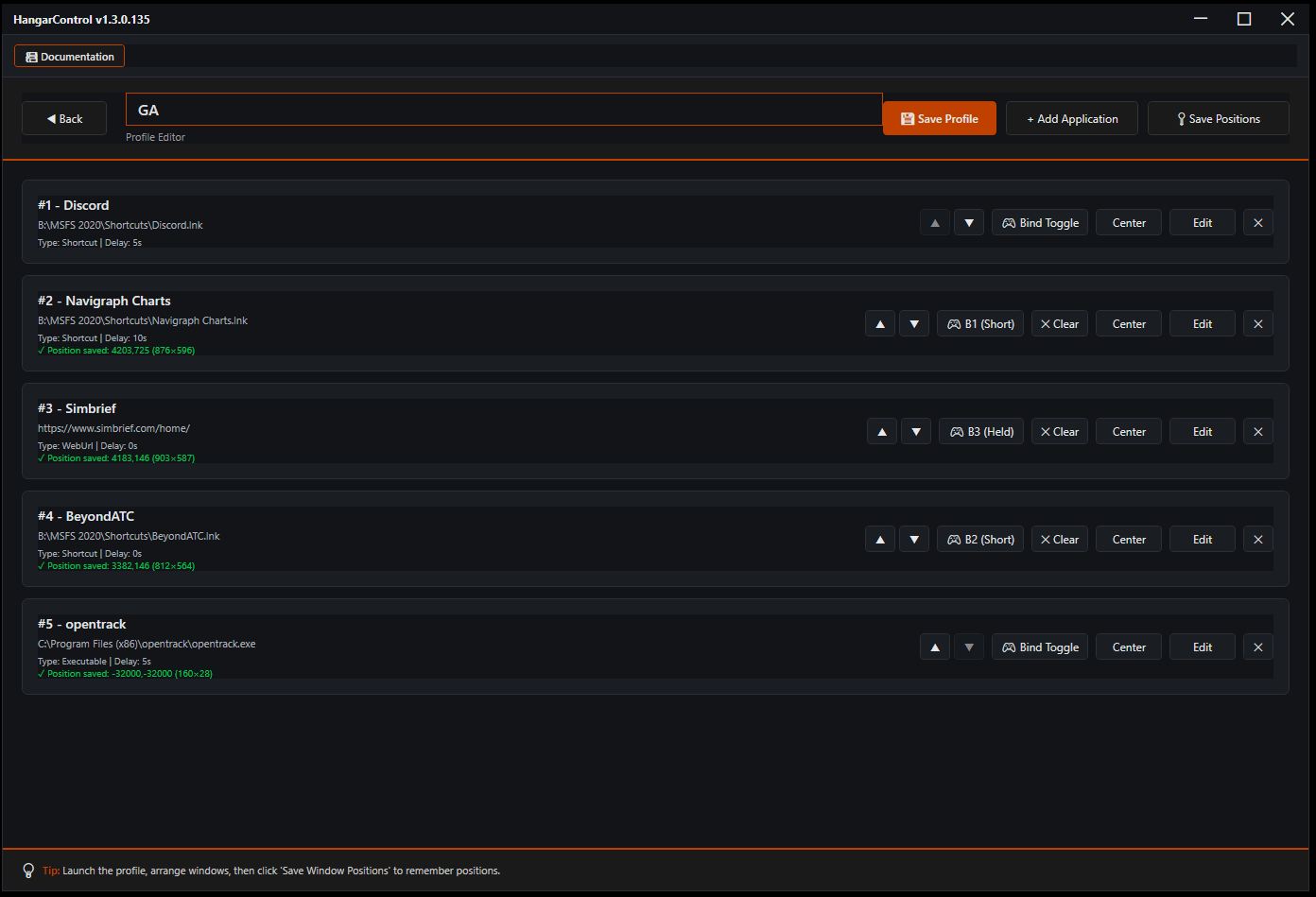
Launch sequences of programs, shortcuts, URLs and PowerShell or batch scripts with delays and arguments. Wait for a window or for SimConnect before the next step. Save every window’s position and put it back. Close it all when the service stops. Toggle apps from a hardware button.
Everything in one zip. Restore on a new PC with path remapping and Reconnect Devices, and five safety copies are kept automatically. Bindings also back themselves up on every save and self restore if a file is damaged.
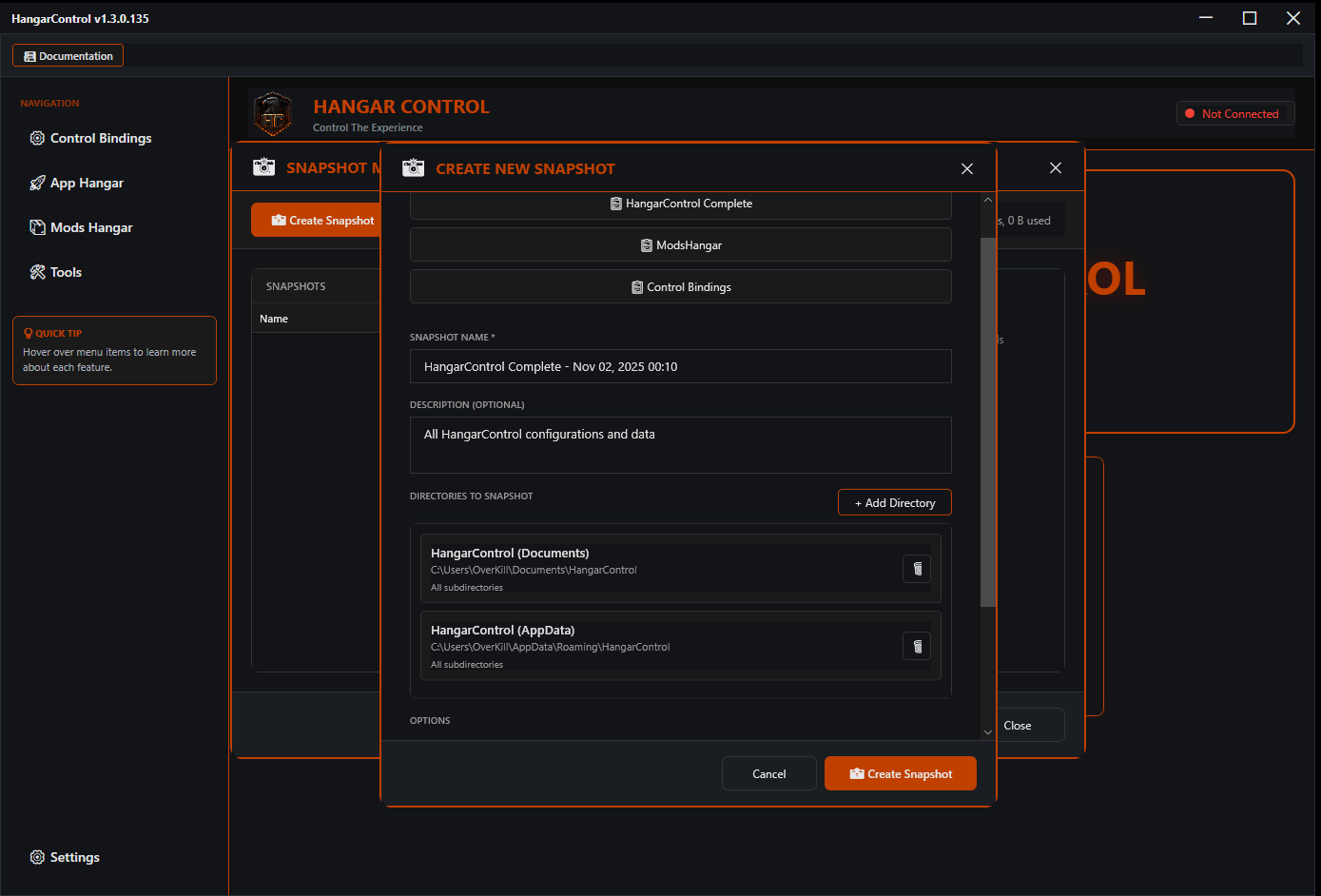
Scheduled, compressed, verified snapshots of HangarControl, Mods Hangar or just your bindings, with retention by count, age or size.
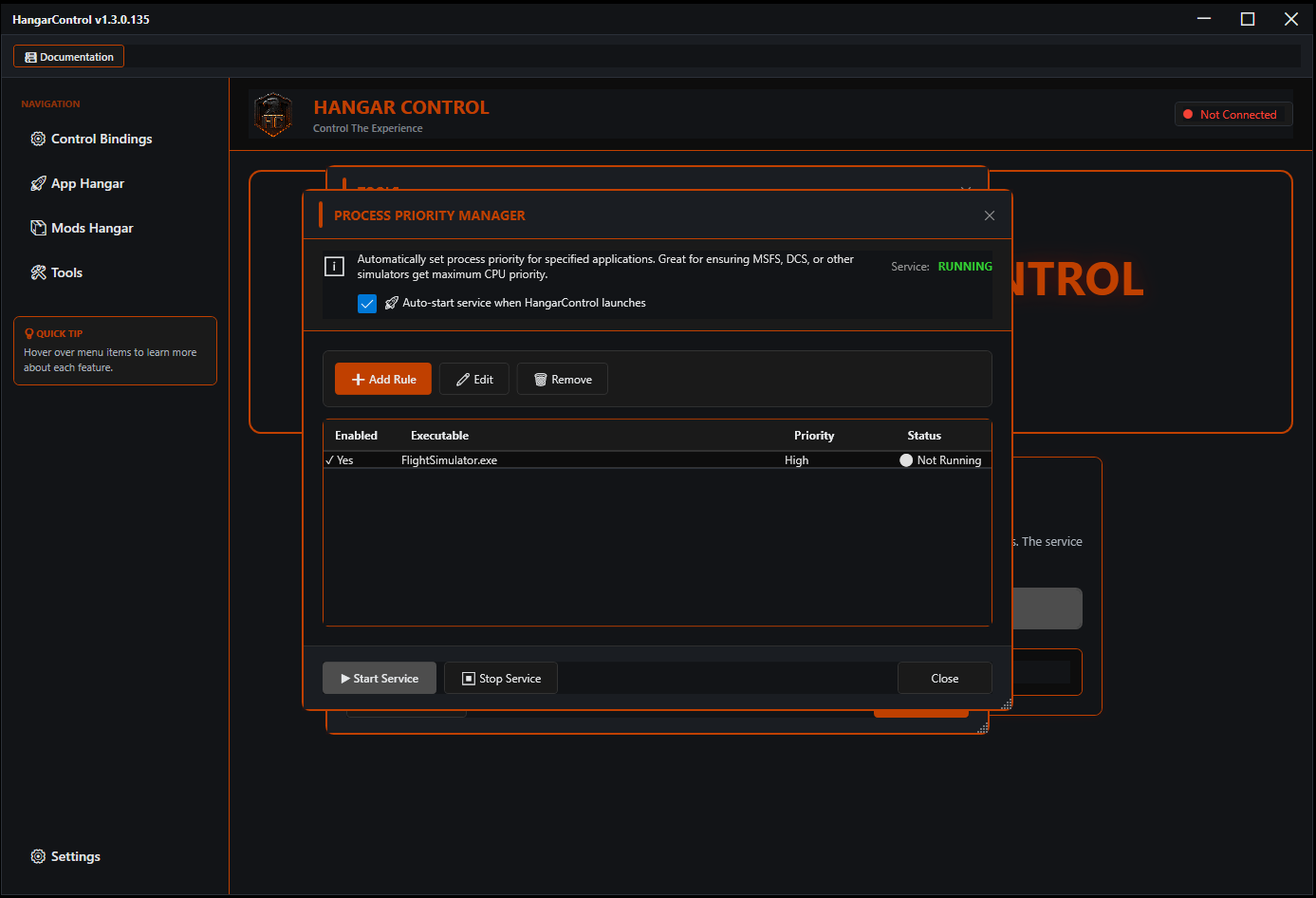
Rules that set the sim to high priority and background apps lower, applied automatically when they start.
Keep several UserCfg.opt profiles for MSFS 2020 and 2024 and swap between them, for example a VR profile and a 4K monitor profile.
HC Variable Manager, a searchable Binding List with CSV export, orphaned data cleanup, the PMDG INI tool, and the SimVR Optimizer for VR headsets.
Companion apps & the small stuff
Browse and watch L:, A:, K:, B:, H: and PMDG variables live, filter by vendor, load an aircraft’s B: vars, and export to CSV. The fastest way to find the variable a switch actually uses.
Updates install from inside the app. Every update leaves a rollback point for settings, profiles, touch panels and sim plugins, with an Undo Last Update button and a Start menu script in case the app won’t open.
One log file per day, a Create Support Bundle button that zips the last 7 days, crash reports that include what led up to the crash, and Send Logs to Developer from inside the app.
Start with Windows, start minimised, auto start the service, close to tray, light or dark mode. Saves are safe with OneDrive and antivirus, and it warns you when a device you bound isn’t plugged in.
Interface & Workflow
Clean, focused screens. These shots are from an earlier build; the current release has moved on in places, and the YouTube channel shows the latest.
Compatibility & Requirements
- Windows 10 or 11, 64 bit, with the .NET 8 Desktop Runtime (the installer prompts if it’s missing)
- Microsoft Flight Simulator 2020 or 2024, DCS World, or X-Plane 12. Other games via keyboard and vJoy
- Stream Deck software 6.5 or newer for the Stream Deck plugin
- A phone, tablet or browser on the same network for touch panels, nothing to install on it
- The free vJoy driver if you want virtual joystick output
- Internet for activation and updates. Voice recognition and everything else runs offline
Pricing & Access
- $39.99 USD – Personal license, active on up to 2 of your computers at once (move it between PCs from your account page)
- Free updates for life, every version, no subscription
- Free 5-day trial, full features, no credit card
- Works with MSFS 2020/2024, DCS World, X-Plane 12, ATS/ETS2, and any PC game that accepts keyboard or joystick input
- Download link and license key delivered by email immediately after purchase. See the Terms of Service for the full license
FAQ
What hardware does HangarControl support?
Anything Windows sees as a game controller or HID device: joysticks, yokes, throttles, pedals, button boxes, Arduino and Teensy builds. On top of that, every Stream Deck model, WinWing FCU, EFIS and PAP-3, WingFlex FCU Cube, RMP and DAP 500, Honeycomb Bravo LEDs, Logitech and Saitek radio, multi and switch panels, MIDI controllers, Knobster, RotAIR and s16n encoders, and serial encoders over a COM port.
Which simulators work?
MSFS 2020 and 2024 through SimConnect and a bundled WASM module. DCS World through an export script that HangarControl installs for you. X-Plane 12 through a bundled plugin. American and Euro Truck Simulator, and any other game, through keyboard and vJoy output.
Does it replace SPAD.neXt, Axis and Ohs or FSUIPC?
For most setups, yes. HangarControl handles the hardware binding, the Stream Deck, the touch panels and the sim bridge in one app with one set of profiles. It doesn’t require FSUIPC. If you have a tool you love for one specific job, they can run side by side as long as they’re not both trying to drive the same device.
How does the 5 day trial work?
Install, create an account, and every feature is on for 5 days. No card. One trial per computer. If you decide not to buy, it simply stops; there’s nothing to cancel.
How many computers can I use it on?
Two at the same time. Building a new rig? Deactivate the old PC from your account page and activate the new one. Backup & Restore carries all your profiles across in one zip.
Do I have to pay for updates?
No. Updates are free for the life of the product, and they install from inside the app with an Undo Last Update button in case one doesn’t suit you.
Does the voice recognition send my audio anywhere?
No. It runs Whisper locally on your PC. Nothing leaves your machine, and it works with no internet connection.
Can I share profiles and panels with other people?
Yes. Profiles, hangars, device layouts and touch panels all export to a file you can hand to someone else, and the Discord is full of them.
Does it work in VR?
Yes. Touch panels on a tablet and voice commands are the two things VR pilots use most, because neither needs you to see a keyboard. The SimVR Optimizer tool is included as well.
What if something doesn’t work?
Email admin@overkillsimulations.com or ask on Discord. Settings has a Create Support Bundle button that zips the last week of logs so you can attach them. HangarControl is built and supported by one developer, and the person answering is the person who wrote the code.