OverKill Simulations — Control the Experience

A live tactical map for DCS World
Your jet, the threats, your route and your flight’s marks, on your monitor, your tablet or phone, and right inside your VR headset. All at the same time, all live, and all within the rules of the server you’re flying on.
- Every screen at once. A second monitor, any browser, a tablet or phone on your Wi‑Fi, and your VR headset all show the same live picture.
- In the headset, no extra apps. TacPad draws the map straight into any OpenXR headset in DCS. No OpenKneeboard needed.
- Run it from the stick. Bind any button, hat or axis: show, zoom, pan, slew a TDC cursor and lock the next hostile.
- Mark it once, your flight sees it. Marks, threat rings and go to points shared with your flight or your side, no server to rent.
- Plays fair. TacPad shows what DCS and the server allow, the same as the F10 map, and tells you when something is hidden.
- One purchase. $14.99, free updates, no license key. Enter your purchase email once and you’re flying.
Plays by the server’s rules
TacPad shows what DCS and the server allow, the same as the F10 map. It is not a cheat and it can’t get around a server’s settings. If a server hides something, TacPad hides it too, and says so.
| Server hides units | No other aircraft, ground units or ships. You still get your jet, route, marks, rings, bullseye and mission drawings. |
| Server hides sensors | No radar contacts or locked target from your own radar. |
| Server hides your own jet | The map, marks, rings and drawings still work. No HUD. |
| Coalitions | You only ever get your own side’s bullseye, briefing and drawings. |
The whole picture, at a glance
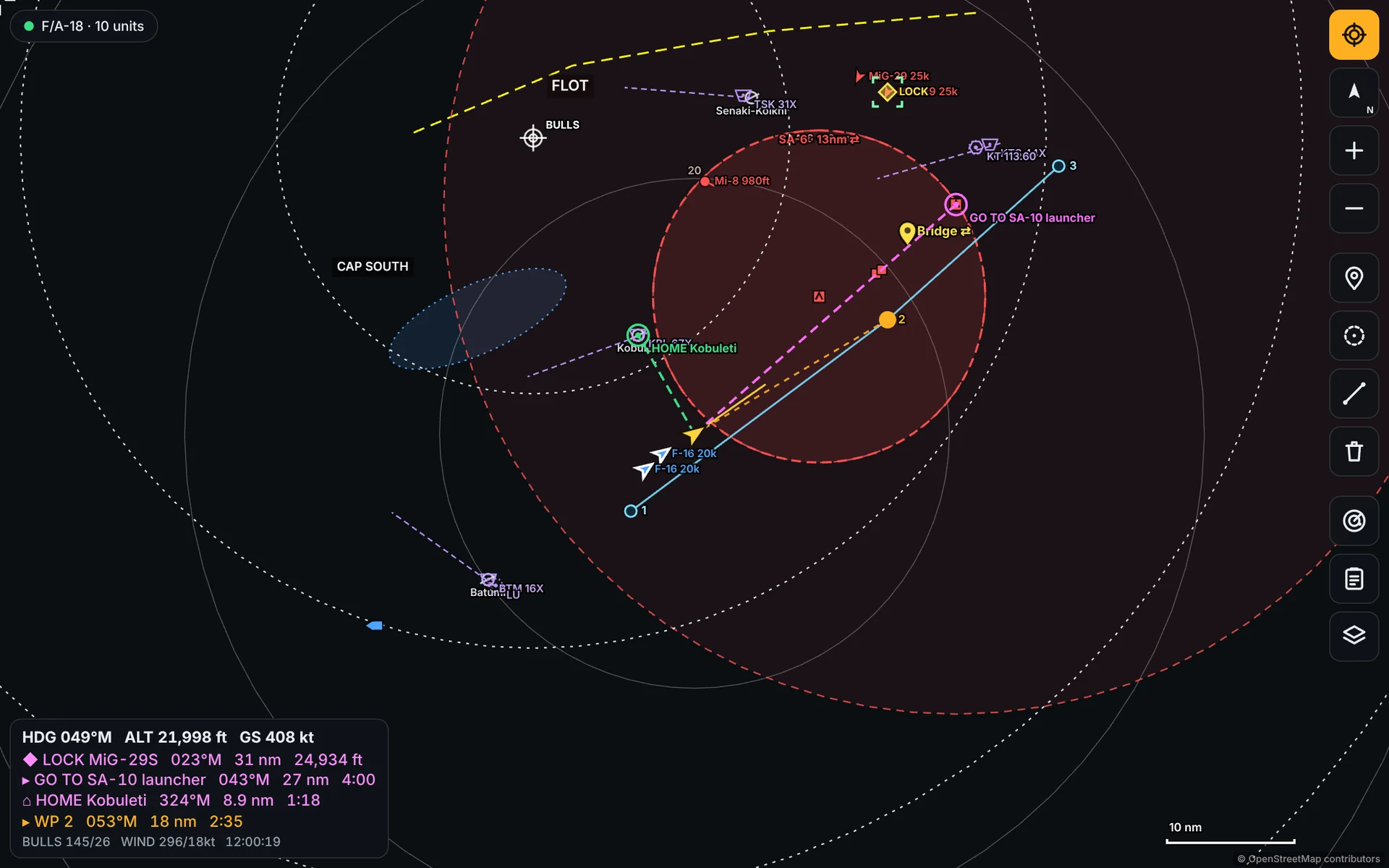
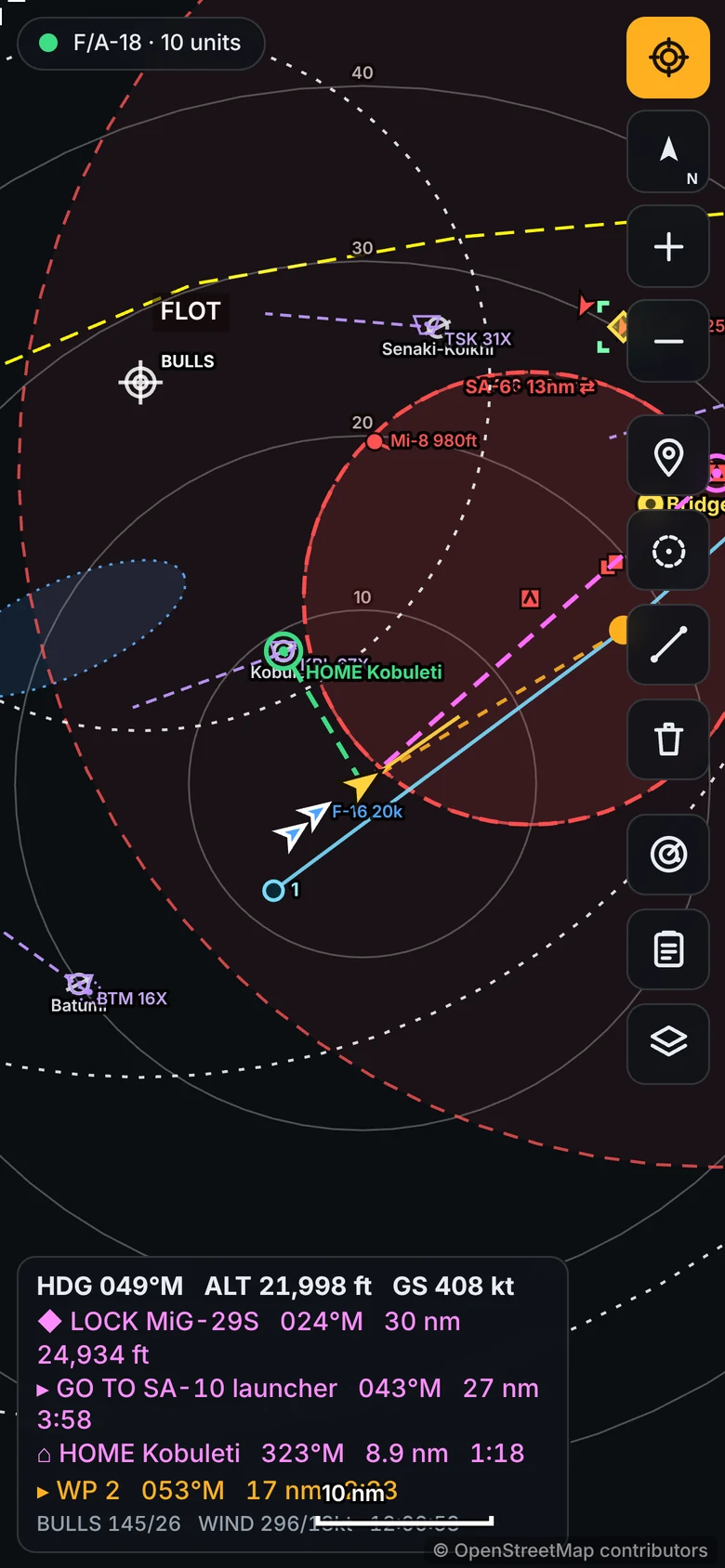
TacPad runs next to DCS and draws a live map of the fight. Drag it, pinch it, tap anything on it.
- Your aircraft with heading, a one minute speed vector and a trail
- Friendly, hostile and neutral units with real names (SA‑10 launcher, F‑16) and altitude
- Threat rings on enemy air defence, and range rings that scale with zoom
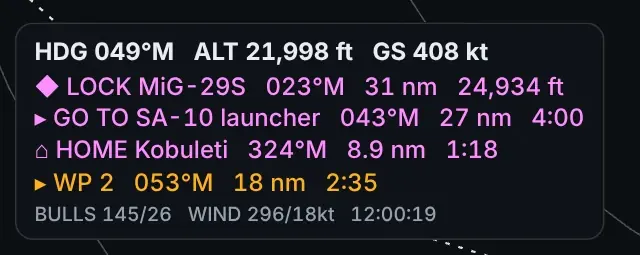
- Your route with the next waypoint’s bearing, range and time to go
- Your own radar contacts and locked target, when the server allows it
- Airfields, TACAN, VOR, NDB and ILS with channels and frequencies
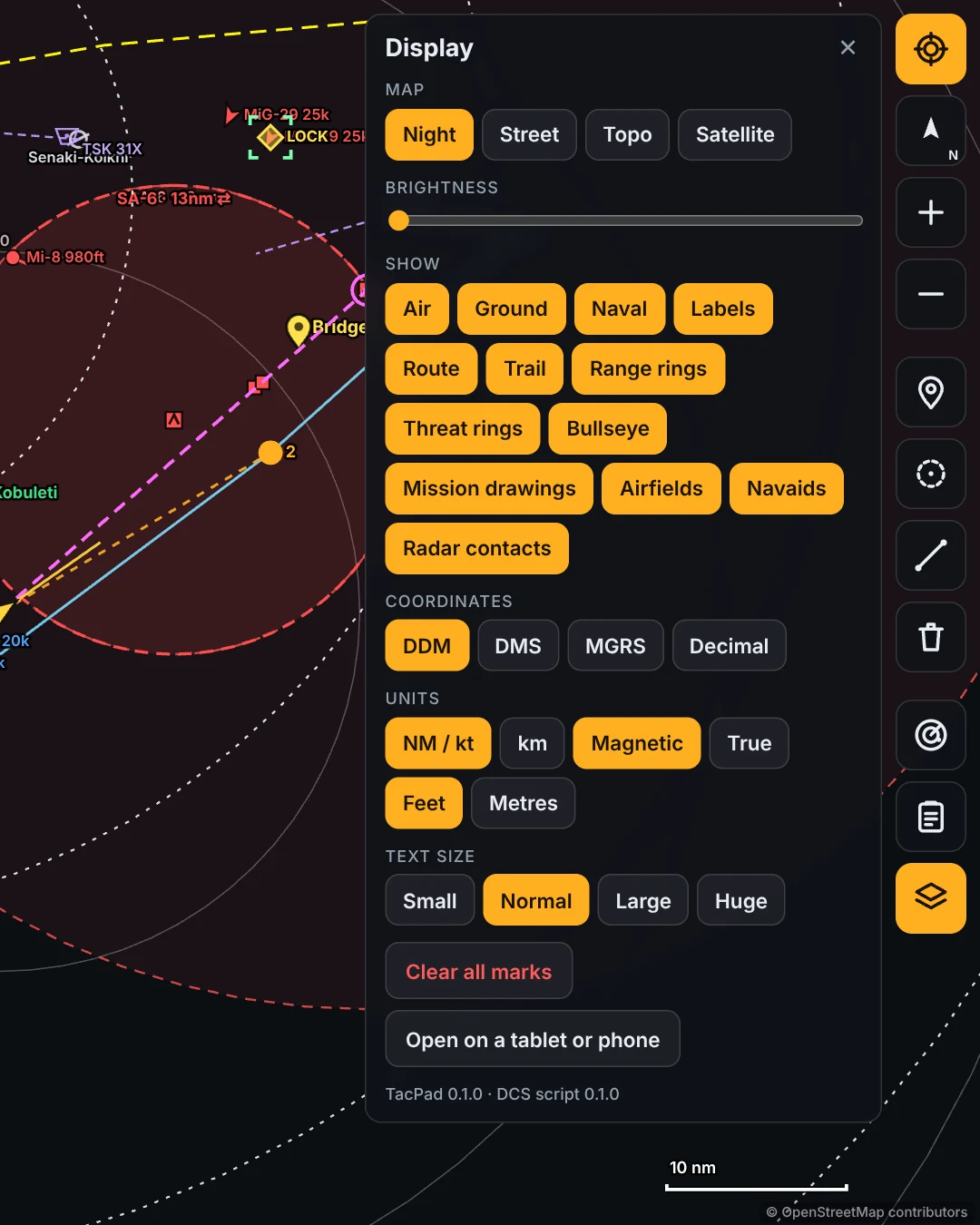
- Night, Street, Topo and Satellite maps, with a brightness slider
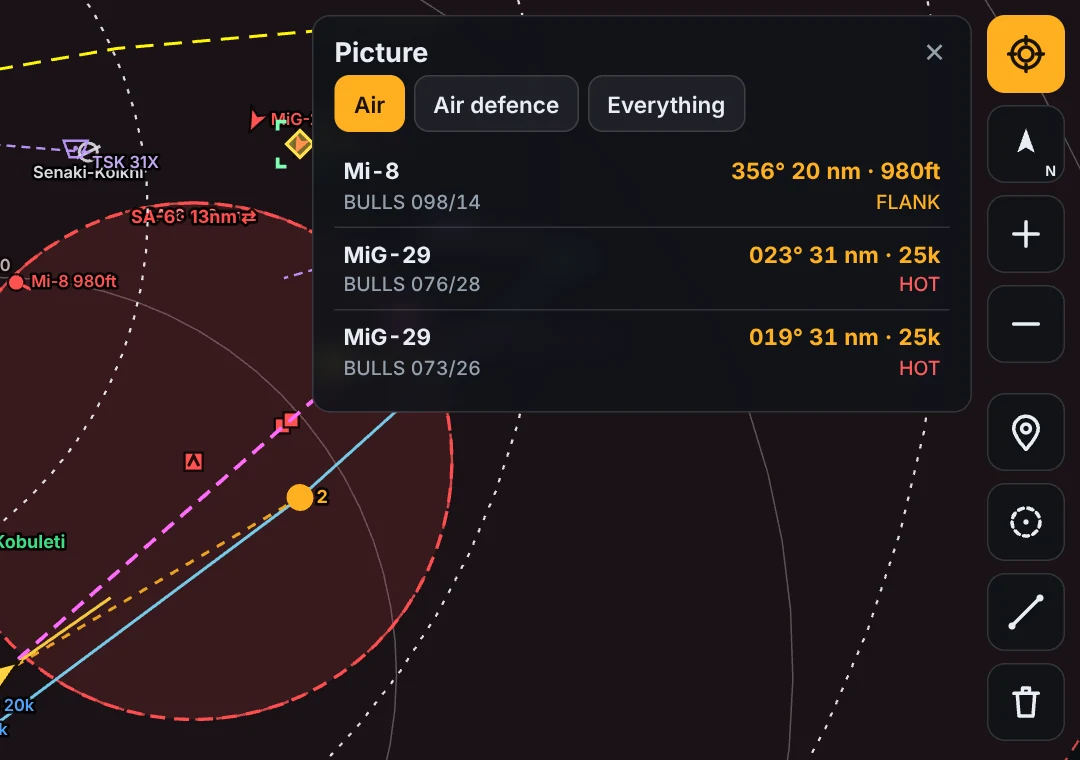
- The Picture panel: nearest hostiles with bearing, range, altitude, aspect and the bullseye call
The same map, inside your headset
TacPad puts the exact map you see in the browser into your VR headset in DCS. Same tiles, units, labels and HUD. No OpenKneeboard, no extra apps.
- Left eye, right eye or both, including Pimax with quad views
- Follows your head or stays fixed in the cockpit
- Size, distance, position, range, heading up or north up
- Ctrl+Alt+M shows and hides it, Ctrl+Alt+N changes the range
- Pimax, Bigscreen Beyond, Quest through Virtual Desktop or Link, and more
- Works when DCS runs as administrator too, with a one click fix
Run it without letting go of the stick
Bind any button, hat, axis or key in the TacPad window. Click Bind, press the button, done. It works while DCS has focus, with no drivers or extra apps.
Show or hide the VR map, zoom in and out, change range, flip heading up or north up, centre on your jet.
Pan with a hat or an axis. Bind one hat direction and the other three fill in by themselves.
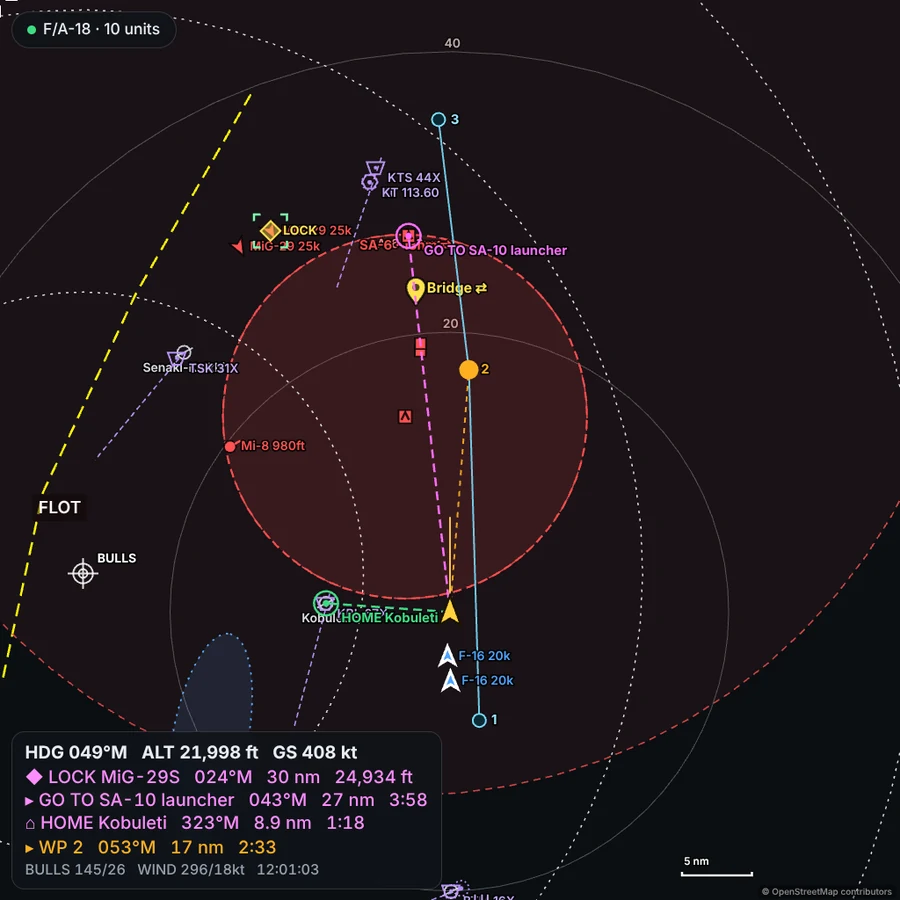
Slew a cursor with your throttle’s TDC, lock what’s under it, or lock the next hostile, nearest first.
Go to the lock, send it to your side, or mark it, all without taking your hands off.
The lock shows on every screen and in VR with bearing, range and altitude. Tap Lock on a tablet and it shows in VR too.
Sticks with 128 buttons and several hats work. Axes get a dead zone, a fine control curve and invert.
Briefing, bullseye and the mission’s own drawings
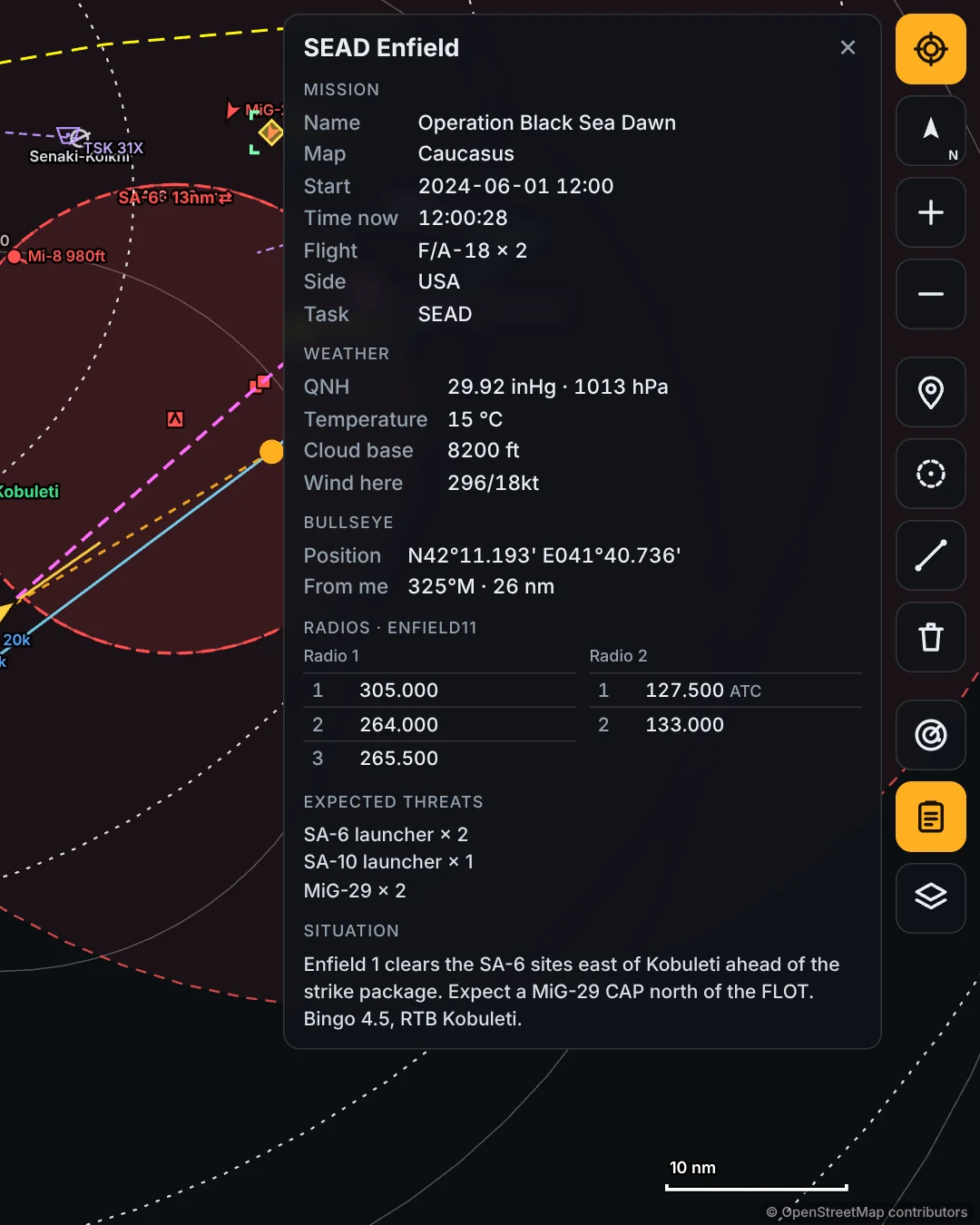
- Bullseye with range rings, and the BULLS call for your jet and anything you tap
- The mission editor drawings for your side, the same ones the F10 map shows
- Briefing panel with the mission, weather and QNH, your flight, expected threats and your radio presets
- Tap an airfield for its tower frequencies, TACAN, ILS and NDB
- Wind at your aircraft and the mission time on the HUD
- Coordinates in DDM, DMS, MGRS or decimal, with one tap to switch
Monitor, tablet, phone, headset
Open the map in any browser on your PC or a second monitor, or scan the QR code with a tablet or phone on the same Wi‑Fi. Every screen shows the same live picture, and each one picks its own map style, layers, units and text size.
Compatibility & Requirements
- Windows 10 or 11, 64 bit, on the PC that runs DCS. One installer, nothing else to install
- DCS World, any map, single player or multiplayer. TacPad sets itself up in your Saved Games folder, and HangarControl, Tacview, SRS and other export scripts keep working
- Internet for the map backgrounds and the one time purchase check. Without internet, units and drawings still show on a dark background
- Optional: a tablet or phone with any browser, on the same Wi‑Fi as the PC
- Optional: any OpenXR headset with DCS in OpenXR mode (the default). Uses Microsoft Edge, already part of Windows, to draw the VR map
- Optional: a stick, throttle or keyboard to show, zoom, pan and lock from your HOTAS
Pricing & Access
- $14.99 USD: one time purchase, every feature
- Free updates, no subscription. TacPad tells you when a new version is out and installs it in one click
- No license key and no device limit. The first time TacPad opens it asks for the email you bought it with, checks it once, and never asks again on that PC
- Buy with your overkillsimulations.com account. Download it from your Account page; your receipt has the steps
- No trial, so check the requirements first. See the Terms of Service for the full license
FAQ
Will it work on my multiplayer server?
Yes. TacPad works on any server and shows what that server allows. If a server hides units or your own jet, TacPad hides them too and says so on the map.
Is this a cheat?
No. It reads only what DCS exports for your side, the same as the F10 map. It never changes your aircraft or your controls.
Do I need OpenKneeboard or another app for VR?
No. TacPad draws into the headset itself. It works with any OpenXR headset, Pimax included.
Does it work with every DCS map?
Yes, every map, single player and multiplayer.
Does it work alongside HangarControl?
Yes. TacPad is a separate app and adds one line to Export.lua next to the others. HangarControl, Tacview, SRS and other export scripts keep working.
Is there a license key?
No. The first time TacPad opens, type the email you bought it with. It checks once with overkillsimulations.com and never asks again on that PC. Use it on your sim rig and your laptop, no device limit.
Is there a free trial?
No. TacPad is $14.99, one time, with free updates.
Can my wingman see my marks?
If you share them. Every mark, ring and go to point is Just me, your side, or Everyone. Your flight connects with TacPad Link, no server to rent.
How do I uninstall it?
From Windows Settings, Apps, like any other program. The uninstaller takes TacPad back out of every DCS folder and switches the VR map off. Your other scripts stay as they were.
Where do I get help?
Start with the TacPad User Guide: install, VR, HOTAS, sharing, updates and fixes for the common problems.
On the Discord, or email admin@overkillsimulations.com. TacPad is built and supported by one developer, and the person answering is the person who wrote the code.